🔑 Permissions & Commands
This page groups Sparrow Sync commands by purpose and lists their default permissions. <angle brackets> mark required arguments, and [square brackets] mark optional arguments. Leave out the brackets when entering a command. Use a player name for <player> and the full snapshot UUID for <id>.
The commands below use the default configuration. If you change a command or permission in commands.yml, use your configured values instead. Changes to command registration require a server restart.
⚙️ Plugin Status and Management
| Command | Description | Default permission |
|---|---|---|
/sparrow-sync status [player] | View the plugin's runtime status or a specific player's sync status. | sparrow_sync.command.status |
/sparrow-sync reload | Reload the plugin configuration. | sparrow_sync.command.reload |
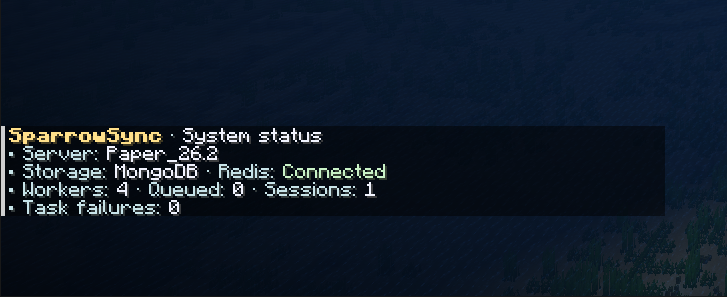
Without a player name, status shows the server ID, storage type, Redis connection status, tasks, sessions, and other runtime information. With a player name, it shows details such as the player's lock holder and latest snapshot, which can help when investigating sync issues.
reload applies settings that support reloading. Settings whose comments specify a restart, as well as command registration itself, require a server restart to take effect.
🔍 Viewing Snapshots
| Command | Description | Default permission |
|---|---|---|
/sparrow-sync snapshot list <player> [page] | List a player's snapshots with pagination. | sparrow_sync.command.view |
/sparrow-sync snapshot view <player> <id> | Open the details GUI for a snapshot. Players only. | sparrow_sync.command.view |
/sparrow-sync exception list [player] [page] | List exception archives saved on this server, optionally filtered by player. | sparrow_sync.command.view |
/sparrow-sync exception view <file> | View the report for an exception archive. | sparrow_sync.command.view |
Start with snapshot list to find a snapshot, then open its details to inspect items and other data. Page numbers start at 1; omitting the page shows the first page.
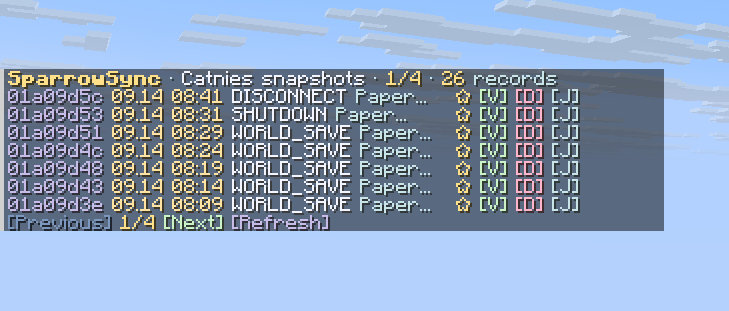
Exception archives are stored locally, so exception commands only access files on the current server. For <file>, use the relative path shown in the exception list. Without a player name, exception list 2 displays the second page of all exception archives. If a player name consists entirely of digits, include a page number as well so the name is not interpreted as a page number.
📦 Managing Snapshots
| Command | Description | Default permission |
|---|---|---|
/sparrow-sync snapshot capture <player> | Immediately create a snapshot for an online player. | sparrow_sync.command.capture |
/sparrow-sync snapshot restore <player> <id> | Restore a player's data from a snapshot. | sparrow_sync.command.restore |
/sparrow-sync snapshot pin <id> | Pin a snapshot to exclude it from automatic rotation cleanup. | sparrow_sync.command.pin |
/sparrow-sync snapshot unpin <id> | Unpin a snapshot so it becomes eligible for automatic rotation cleanup again. | sparrow_sync.command.unpin |
/sparrow-sync snapshot delete <id> | Delete a snapshot. | sparrow_sync.command.delete |
/sparrow-sync exception delete <file> | Delete a local exception archive and its associated diagnostic files. | sparrow_sync.command.exception.delete |
Capturing and Restoring Data
capture requires the player to be online, either on the current server or another server participating in synchronization. It captures the player's current data and saves it as a new snapshot.
restore supports both online and offline players. For online players, the plugin performs the restore on the server they are playing on. For offline players, the restored data loads on their next login. The snapshot must belong to the specified player.
Online restores follow synchronization.skip-online-restore-data, which skips health and location by default. See Key Configuration Options for the reasons and configuration details.
Keeping Important Snapshots
Use pin to keep a snapshot for the long term. Pinning prevents automatic cleanup; you can still remove the snapshot explicitly with delete. Exception archives are separate local files and should be removed with exception delete.
📤 Exporting Data
| Command | Description | Default permission |
|---|---|---|
/sparrow-sync snapshot export <format> <id> | Export a single snapshot to a file. | sparrow_sync.command.export |
/sparrow-sync snapshot import <file> | Import an exported snapshot into the database. | sparrow_sync.command.import |
/sparrow-sync data dump_all [file] | Export database data in bulk to a ZIP file. | sparrow_sync.command.dumpall |
/sparrow-sync data import_all <file> | Import data in bulk from a ZIP file. | sparrow_sync.command.importall |
Individual Snapshots
For snapshot export, <format> accepts BINARY or JSON, producing a .snapshot or .json file respectively. Note the argument order: format first, snapshot ID second.
Exported files are stored under plugins/SparrowSync/snapshot/output/. To use snapshot import, place the file in that directory and enter its relative path from there.
Importing writes the snapshot to the database. To restore a player's data from it, run snapshot restore after importing.
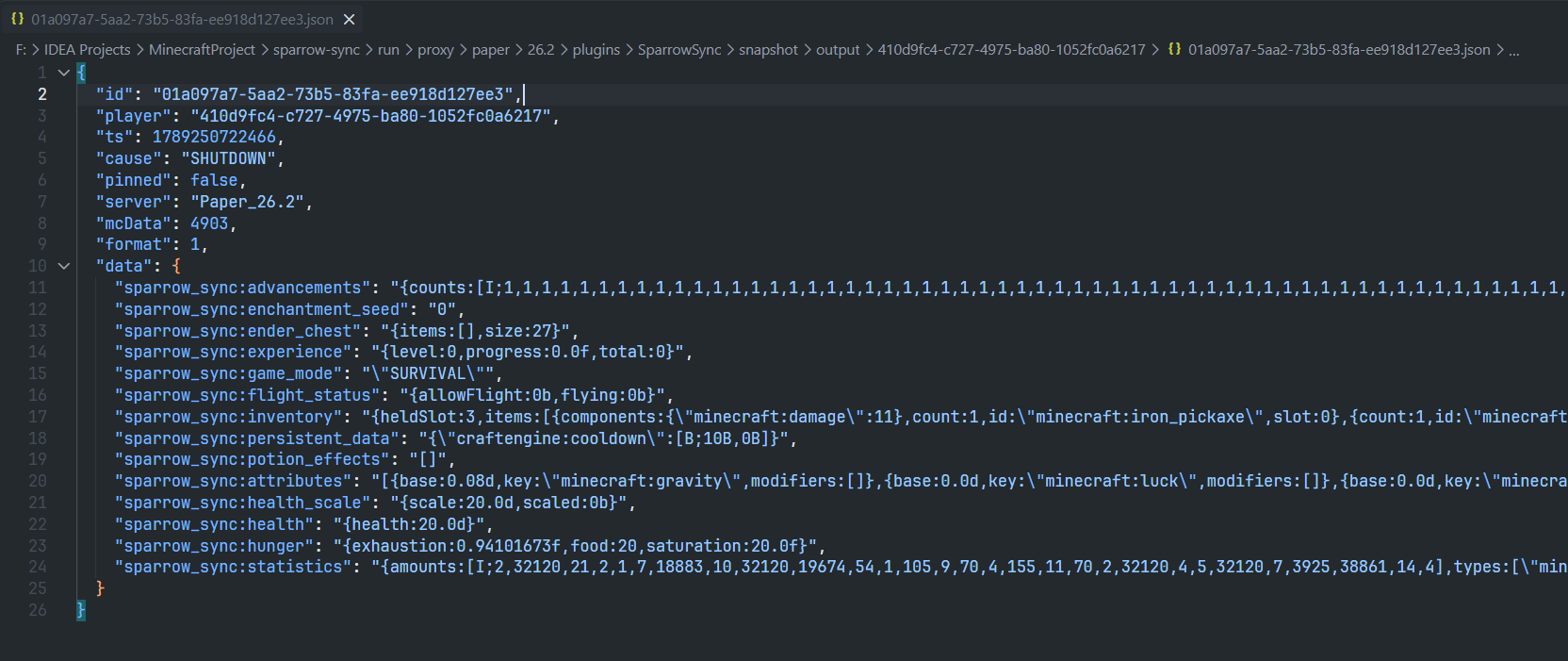
Here is an exported JSON snapshot showing its metadata and the contents saved for each data type:
Bulk Export and Import
Bulk operations use plugins/SparrowSync/snapshot/dump/. You can specify a ZIP filename for dump_all; if omitted, the plugin generates a name containing a timestamp.
To use import_all, place the ZIP in that directory and enter its relative path. Wait for the console to report the result, then check the imported data.
🔄 Migrating Data
| Command | Description | Default permission |
|---|---|---|
/sparrow-sync data migrate <source> | Migrate player data from another plugin. Console or RCON only. | sparrow_sync.command.migrate |
Set <source> to husksync or invsync. The original plugin must remain installed and enabled so Sparrow Sync can read its data.
Restrict player access before migrating. Once migration is complete and you have verified the data, stop the server, uninstall the original plugin, then start the server and lift the restrictions. See Data Migration for the full procedure and how to handle failed archives.
🖥️ GUI and Editing Permissions
| Command or permission | Purpose | Default command permission |
|---|---|---|
/sparrow-sync gui <player> | Open a player's snapshot list GUI. Players only. | sparrow_sync.command.view |
sparrow_sync.ui.edit | Allow item interactions and management actions in the GUI. | — |
gui starts at the player's snapshot list, while snapshot view opens a specific snapshot directly. View permission lets you browse snapshot contents. Grant sparrow_sync.ui.edit when someone also needs to perform actions in the interface.
Snapshot List
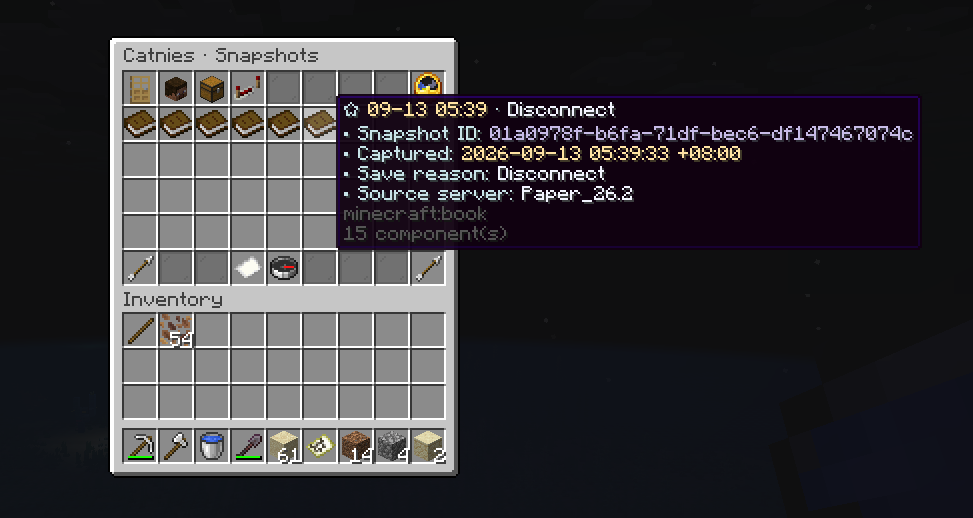
Each book in the list represents a snapshot. Hover over it to see the capture time, save reason, source server, and full ID, then choose the record you want to open.
Snapshot Details
After opening a snapshot, use the buttons at the top to switch between data views. The image below shows the saved inventory and equipment:
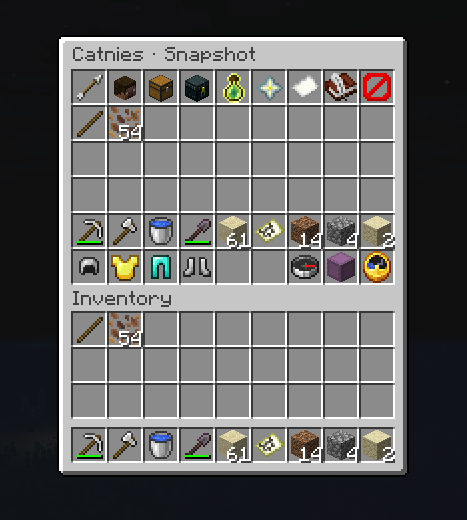
sparrow_sync.ui.edit controls item interactions as well as deleting, pinning, exporting, restoring, claiming items, and teleporting through the interface. These GUI actions check the editing permission independently; they do not also check each corresponding command permission. Only grant it to people who need to manage player data.